• Solutions
    • My Account
    • Learning Locker
    • Authoring Tool
    • Assessment Builder
    • Partner Portal
  • User profiles
  • Changelog
  • Platform Status
  • Downloads
  • Get PEDAGOO Today
  • Solutions
    • My Account
    • Learning Locker
    • Authoring Tool
    • Assessment Builder
    • Partner Portal
  • User profiles
  • Changelog
  • Platform Status
  • Downloads
  • Get PEDAGOO Today
home/Knowledge Base/My Account/Organizations/LTI 1.3. Integration (Moodle)

LTI 1.3. Integration (Moodle)

This document outlines how to set up the LTI 1.3 integration between Pedagoo and your Moodle.

  • To configure a Practice test from Pedagoo through LTI 1.3 you need some Pedagoo data. Please, review the LTI 1.3 integration – How to get the Pedagoo data post.
Configure the service in your Moodle.
  1. Access to your Moodle with your Admin credentials.
  2. Navigate to: Site Administration > Plugins > Activity Modules > Extenal Tool > Manage tools.
  3. Click on the link to Configue a tool manually.
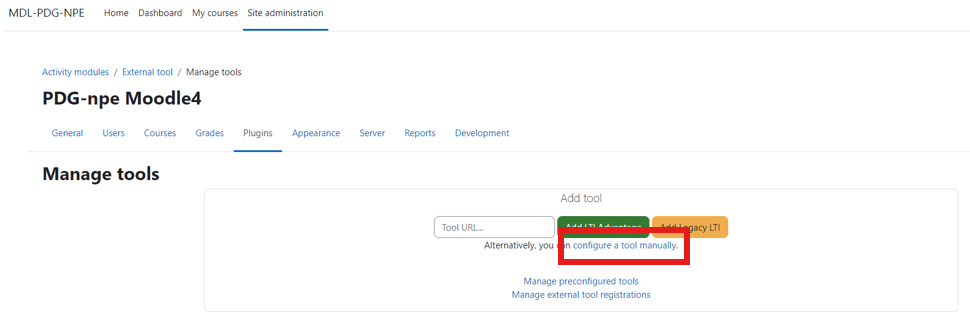
  1. For the Pedagoo LTI Tools, please enter/select the following:
  • Tool Settings:
    • Tool Name: Pedagoo Tool
    • Tool URL: https://publicapi-stg1.pedagoo.com
    • LTI Version: LTI 1.3
    • Public key type: Keyset URL
    • Public keyset: https://publicapi.pedagoo.com/v1/lti1p3/jwks
    • Initiate login URL: https://publicapi.pedagoo.com/v1/lti1p3/auth
    • Redirection URI(s): https://publicapi.pedagoo.com/v1/lti1p3/launch
    • Custom parameters:
      • Tool configuration usage: Show as preconfigured tool when adding an external tool
      • Default launch container: Embed, without blocks
  • Services:
    • IMS LTI Assignment and Grade Services: Use this service for grade sync and column management
    • IMS LTI Names and Role Provisioning: Use this service to retrieve members’ information as per privacy settings
    • Tool Settings: Do not use this service
  • Privacy:
    • Share launcher’s name with tool: Always
    • Share launcher’s email with tool: Always
    • Accept grades from the tool: As specific in Deep Linking definition or Delegate to teacher
    • Leave Force SSL: unchecked
  1. Click on Save Changes.
Add and activity or resource

On Moodle go to the course that you want to add the Tool to.

  1. Click Turn editing on, then click Add an activity or resource.
  2. Click External tool.
  3. For Activity name, enter the name of the activity.
  4. For Preconfigured tool, choose the Tool created earlier: Pedagoo LTI Tool.
  5. Click on “show more” and type the resource_link_id=ID from the practice test.

Note. To get this ID:

    1. Click on Tools > Partner Portal.
    2. Click on Catalog.
    3. Select the license and search for the Practice Test.
    4. Hover your mouse pointer over the Practice Test box of the product you want to include in Moodle.
  1. Click Save and return to course.

What would you like to do next?

  • Do you want to activate the LTI service. Click here for more info.
  • Do you want to get the Pedagoo data to LTI 1.3. Click here for more info.
Tags:LTI 1.3LTI
Search
Categories
  • My Account
  • Learning Locker
  • Authoring Tool
  • Assessment Builder
  • Partner Portal
  • Proctoring
  • Pedagoo Website
  • Privacy Policy
  • Legal notice
  • Cookies Policy
  • Copyright 2020 Pedagoo. All Rights Reserved.

We use our and third party cookies to improve your experience and our services, and to analyse the use of our website. If you continue browsing, we take that to mean you accept their use. Read more.

ACCEPTCookie settings

Privacy & Cookies Policy

Privacy Overview

This website uses cookies to improve your experience while you navigate through the website. Out of these cookies, the cookies that are categorized as necessary are stored on your browser as they are essential for the working of basic functionalities of the website. We also use third-party cookies that help us analyze and understand how you use this website. These cookies will be stored in your browser only with your consent. You also have the option to opt-out of these cookies. But opting out of some of these cookies may have an effect on your browsing experience.
Necessary
Always Enabled
Necessary cookies are absolutely essential for the website to function properly. This category only includes cookies that ensures basic functionalities and security features of the website. These cookies do not store any personal information.
Non-necessary
Any cookies that may not be particularly necessary for the website to function and is used specifically to collect user personal data via analytics, ads, other embedded contents are termed as non-necessary cookies. It is mandatory to procure user consent prior to running these cookies on your website.
SAVE & ACCEPT
Popular Search:How to order keys, How to create a group, How to create an account and login