What is an organization?
An organization is a management structure that determines relationships between the different activities (like creating/editing tests in the case of teachers or taking assessments for students) and the members of the platform. Within an organization, the different members can be assigned roles and permissions to carry out different tasks.
In a nutshell: An organization is a supergroup (like a school or a company) that can be divided into subgroups (a dependent school or branch, named children organizations) that can contain smaller groups (like classrooms or departments), each with their own members who are assigned different roles and permissions that allow them to perform certain tasks.
How to create an organization
To create a new organization, please follow these steps:
- Go to My Account by clicking on Tools > My Account.
- On the left-hand side, click Organizations.
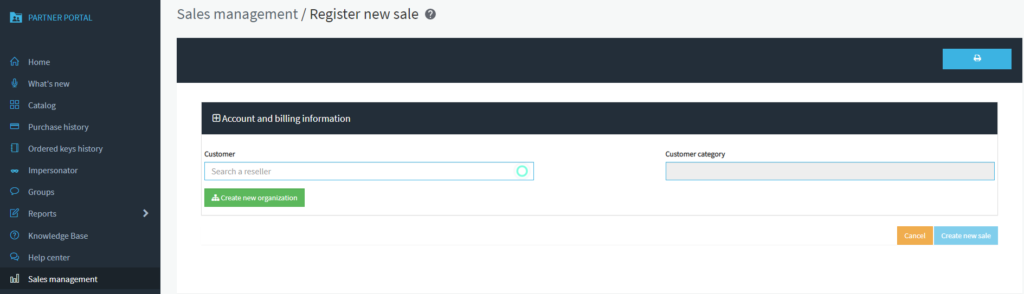
Note. If you are using Partner Portal you can create an organization by clicking on Sales management > Register new sale > Create new organization.
- Click YOUR ORGANIZATION.
- In the INFO tab, fill in the fields (Note: it’s mandatory to fill in the fields marked with an asterisk).
-
- Name. Type the name of the organization.
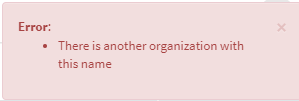
Note. If an organization with the chosen name already exists, the following message will be displayed. Please, type another name for your organization.
-
- Category. Select the organization’s category:
- Academic:
- Publicly-supported schools with grades prior to college. These grades are kindergarten (K) through the 12th grade (1-12).
- Educations institutions post-Secondary Level. This includes community colleges, public colleges, and not-for-profit colleges. Technical and other for-profit colleges are not included in this category and fall under commercial training.
- Business:
- Companies (private companies, govermmet-owned entities and/or non-profit companies) that use oru products to train their own employees.
- Training center for-profit training, including traditional training centers and for-profit colleges.
- Academic:
- Category. Select the organization’s category:
Note. Regardless of the type of organization, if it is to be a distributor, you must include a Distributor discount.
-
- Country. Select the organization’s country.
- Sales Rep. Type the contact email of the sales representative.
- Status. Select if the organization is Active or Inactive.
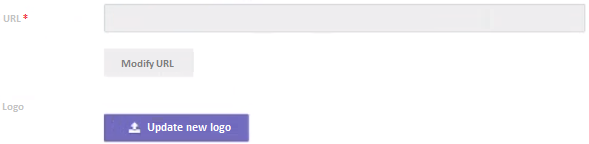
- White Label: If you want to customize the URL and logo of the organization select Enable. The URL field and upload logo button will appear under the Name field
-
-
-
- Click on Modify URL to type a customized URL (Note. You cannot use any URL. This modification has limitations).
- Click on Update new logo to use your own organization’s logo (Note. If you don’t use your own logo, your organization will use the logo to the father organization).
-
- Trial. Select if the organization will have a trial.
- Valid Until. Select the date until which the trial will be active.
- Distributor discount. It is the discount percentage that will be applied to the sales created for them. If this field has a value higher than zero, the organization is considered a distributor.
-
- Click on Accept.
IMPORTANT. Once an organization has been created, if you need to change any data, you must click on the EDIT button.
What would you like to do next?
- Do you want to include services in your organization? Click here for more info.
- Do you want to include users in your organization? Click here for more info.
- Do you want to include contact info in your organization? Click here for more info.
- Do you want to activate a PLS for your organization? Click here for more info.