• Solutions
    • My Account
    • Learning Locker
    • Authoring Tool
    • Assessment Builder
    • Partner Portal
  • User profiles
  • Changelog
  • Platform Status
  • Downloads
  • Get PEDAGOO Today
  • Solutions
    • My Account
    • Learning Locker
    • Authoring Tool
    • Assessment Builder
    • Partner Portal
  • User profiles
  • Changelog
  • Platform Status
  • Downloads
  • Get PEDAGOO Today
home/Knowledge Base/Partner Portal/Groups/How to create a group

How to create a group

A group is a collection of people with some common characteristics or purposes. For example, if your company is a school, a group could be the students from a classroom.

You can create as many groups as you like within your organization.

Video
https://measureup.alojamientoweb.tv/wp-content/uploads/2020/06/6.-Create-a-group.mp4


Steps

To create a group:

  1. Once you are logged in your account, click on Partner Portal.
  2. On the left menu, click on Groups.
  3. Click on NEW GROUP.
  4. Complete 3 steps:

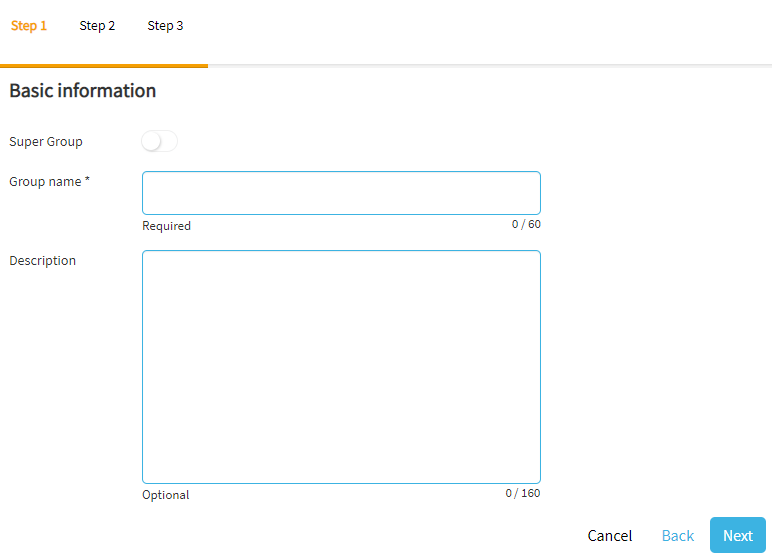
STEP 1. BASIC INFORMATION

      1. Type the Group name (required). Note. You cannot create a group with the same name than an existing group
      2. Type a Description (optional).
      3. Click on NEXT or click on STEP 2

Pedagoo How to create a group

¿What is a Super Group?

If you need to manage several groups, you can create a Supergroup. A Supergroup is a group of groups.

        1. Active the

      Super Group

    1. Type the Group name (required) and a Description (optional).
    2. Select the groups.

STEP 2. SELECT MEMBERS

    1. Select the users one to one (Note. If you want to include all students in the group, click on Name). Note: to see the users you want to add, these should already have an account that belong to your organization. If these users do not exist yet, you can create then by clicking on CREATE USER or IMPORT USERS.
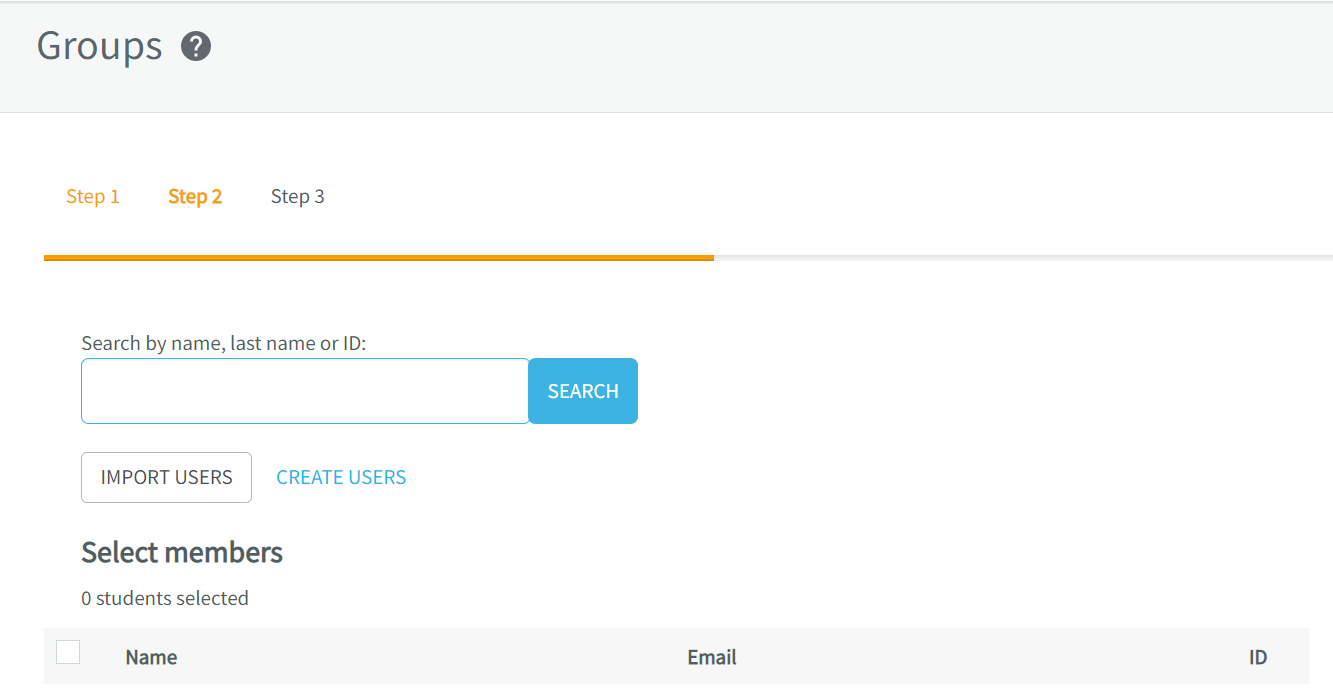
b. Click on NEXT or click on STEP 3

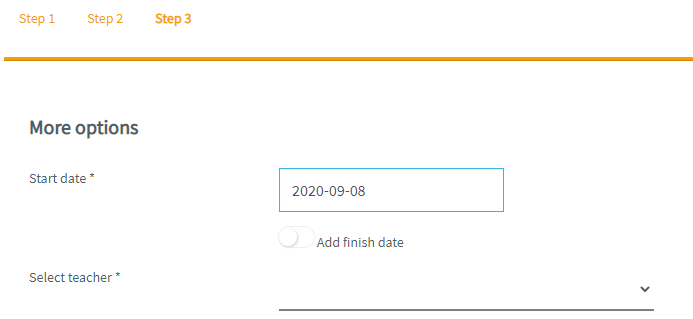
STEP 3. MORE OPTIONS

        • Select the start and finish date of the group:
          1. Click on the Start date, and select the start date of the group.
          2. Click on the Add finish date, and select the finish date of the group.

        • Select the teacher:
          1. Click on Select teacher.
          2. Select the teacher who will oversee this group.

Note. You need, at least, one user with this role.

      1. Click on CREATE.

What would you like to do next?

    • Do you want to create a new user? Click here for more info.
    • Do you want to import users? Click here for more info.
    • Do you want to manage a group? Click here for more info.
    • Do you want to order keys? Click here for more info.
    • Do you want to create a user/group report? Click here for more info.
Tags:Partner Portalcreate a groupGroupsgroup
Search
Categories
  • My Account
  • Learning Locker
  • Authoring Tool
  • Assessment Builder
  • Partner Portal
  • Proctoring
  • Pedagoo Website
  • Privacy Policy
  • Legal notice
  • Cookies Policy
  • Copyright 2020 Pedagoo. All Rights Reserved.

We use our and third party cookies to improve your experience and our services, and to analyse the use of our website. If you continue browsing, we take that to mean you accept their use. Read more.

ACCEPTCookie settings

Privacy & Cookies Policy

Privacy Overview

This website uses cookies to improve your experience while you navigate through the website. Out of these cookies, the cookies that are categorized as necessary are stored on your browser as they are essential for the working of basic functionalities of the website. We also use third-party cookies that help us analyze and understand how you use this website. These cookies will be stored in your browser only with your consent. You also have the option to opt-out of these cookies. But opting out of some of these cookies may have an effect on your browsing experience.
Necessary
Always Enabled
Necessary cookies are absolutely essential for the website to function properly. This category only includes cookies that ensures basic functionalities and security features of the website. These cookies do not store any personal information.
Non-necessary
Any cookies that may not be particularly necessary for the website to function and is used specifically to collect user personal data via analytics, ads, other embedded contents are termed as non-necessary cookies. It is mandatory to procure user consent prior to running these cookies on your website.
SAVE & ACCEPT
Popular Search:How to order keys, How to create a group, How to create an account and login