In this question type, the candidate needs to fill in a blank space with the answer. There can be multiple right answers.
Video
Steps
To access this question type, in Authoring Tool:
- From the Home screen, click on Questions.
- Click on CREATE QUESTION.
- Click on the question type: Fill in the Blank.
Note. To edit this question, search the question and click on Edit. Review How to edit a question to more information.
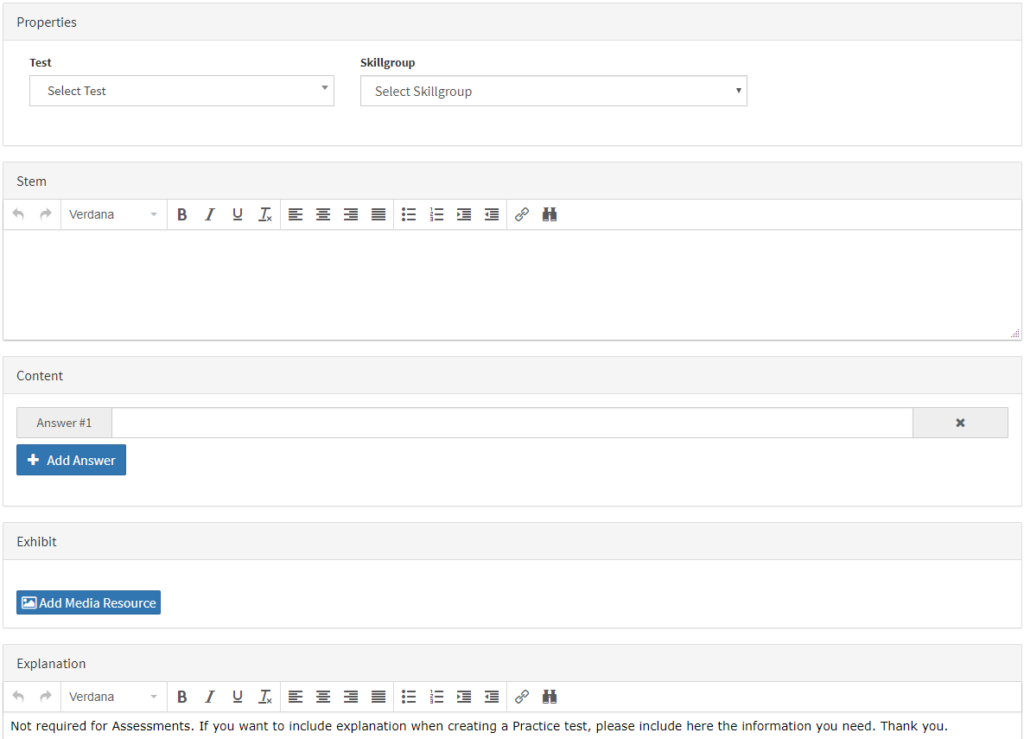
- Choose the test to which the question will belong.
Note. Observe that a question cannot be created if you do not link it to a test before.
- Select the skill group to which the question will belong to.
- Next step is filling in the following fields:
-
- Stem: write the question.
Note. If you need to insert code when creating the question (in the Stem, in the options or in the Explanation), please follow these step: click on the {;} icon, select the language (HTML, Javascript, CSS,…) type the code and, later, click on the OK button. If you type the code directly, it may not display correctly.
-
- Content: add the right question in the field appearing below. If there are multiple right answers, add them by clicking the Add Answer.
You can check that the right answer is selected by clicking the Preview button. A blank box will appear in which the candidates can enter their answers. If the answer the candidate enters matches any of the set right answers, a checkmark will be shown, indicating that the answer is correct. If it is wrong, a red cross will be shown.
-
- Exhibit: alternatively, you can add images as additional information. Images can be added when you create the question. You can select them from the Media Library or browse to them on your computer when you are creating the question. Those images you select from your computer will be stored in the Multimedia Library.
- Explanation: write any information that can be useful to understand why the answers are right or wrong (Note. Not required for Assessments).
- Enter one or several tags.
Note. Tags are used to filter questions in other services, like the Assessment Builder.
- Select the difficulty level for the question: Easy/Beginner, Moderate or Expert.
- Click on one of the following buttons:.

-
- Close. If you want to close the question and return to the
- Preview. If you want to watch the work to the question.
- Save & New. If you want to save the changes, and create a new question.
- Save. If you want to save the changes, and stay on the same question.
| Edit question |
|
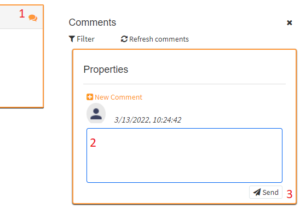
If you are editing a question between several people, you can write comments to share your ideas with the other editors.
|
What would you like to do next?
- Do you want to create a SIMULATION question? Click here for more info.
- Do you want to create a SINGLE CHOICE question? Click here for more info.
- Do you want to create a MULTIPLE CHOICE question? Click here for more info.
- Do you want to create a PIN question? Click here for more info.
- Do you want to create a REORDER LIST question? Click here for more info.
- Do you want to create a BUILD LIST question? Click here for more info.
- Do you want to create a BUILD AND REORDER LIST question? Click here for more info.
- Do you want to create a TREE question? Click here for more info.
- Do you want to create a CONTENT TABLE question? Click here for more info.
- Do you want to create a SELECT & PLACE question? Click here for more info.
- Do you want to create a CASE STUDY question? Click here for more info.
- Do you want to create a LIVE SCREEN question? Click here for more info.
- Do you want to create a COMMAND-LINE question? Click here for more info.