• Solutions
    • My Account
    • Learning Locker
    • Authoring Tool
    • Assessment Builder
    • Partner Portal
  • User profiles
  • Changelog
  • Platform Status
  • Downloads
  • Get PEDAGOO Today
  • Solutions
    • My Account
    • Learning Locker
    • Authoring Tool
    • Assessment Builder
    • Partner Portal
  • User profiles
  • Changelog
  • Platform Status
  • Downloads
  • Get PEDAGOO Today
home/Knowledge Base/My Account/Organizations/LTI 1.1 Integration (Canvas)

LTI 1.1 Integration (Canvas)

This document outlines how to set up the LTI integration between Pedagoo and your Canvas.

IMPORTANT. To configure a Practice test from Pedagoo through LTI 1.1 you need some Pedagoo data. Please, review the LTI 1.1 integration – How to get the Pedagoo data post.

How to set up the LTI 1.1 integration between Pedagoo and your Canvas.

Creating your Pedagoo App with a manual configuration:
  1. Log into your Canvas course.
  2. In the left sidebar menu, click on Settings.
  3. In the Settings window, select the Apps tab.
  4. Click on the View App Configurations button.
  5. Click on the + App button.
  6. Fill all fields:
    • Name. Type the title you wish the students to see on the course page.
    • Consumer key. Type the copied Consumer key from Pedagoo.
    • Shared secret. Type the copied Shared secret from Pedagoo.
    • Launch URL. Type the copied Launch URL from Pedagoo.
    • Domain. Type delivery.pedagoo.com.
    • Privacy. Select Public.
    • Custom Fields. Type resource_link_id=ID
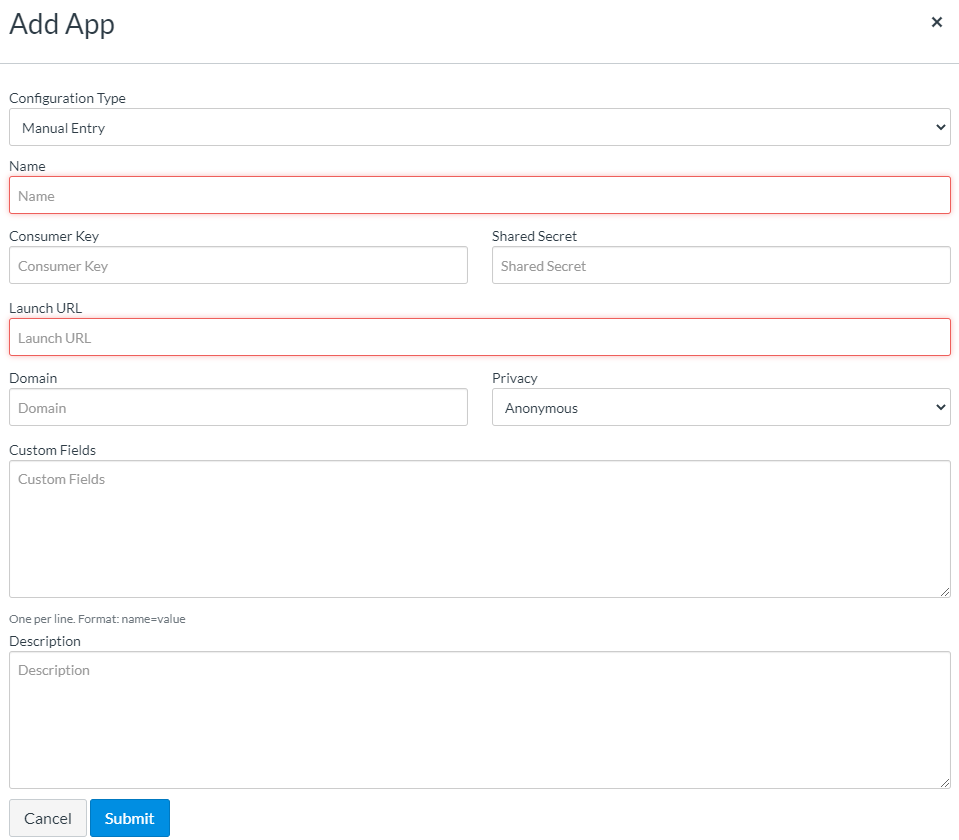
  1. Click on Submit.
Adding a Pedagoo link as an Assignment in a Canvas course:

After adding Pedagoo as an external tool in Canvas, you can link a Pedagoo practice test exercise to a Canvas assignment.

  1. Log into your Canvas course.
  2. In the left sidebar menu, click on Assignments.
  3. Click on the + Assignment button.
  4. Enter the details of the assignment.
  5. In the Submission Type drop-down menu, click the External Tool option.
  6. In the Submission Type box, click the Find button.
  7. In the External Tool window, click the Pedagoo option and then click the Select button.
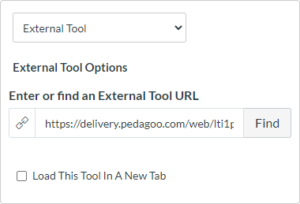
  1. Scroll to the bottom of the Create New Assignment page and click on the Save or Save & Publish button.

A link to Pedagoo will display in the Assignment Preview page. Canvas teachers and students can use this link to access Pedagoo.


What would you like to do next?

  • Do you want to integrate Pedagoo via LTI? Click here for more info.
  • Do you want to know how to get the Pedagoo data? Click here for more info.
  • Do you want to integrate Pedagoo with Moodle? Click here for more info.
  • Do you want to integrate Pedagoo with Blackboard? Click here for more info.
  • Do you want to integrate Pedagoo with WordPress? Click here for more info.
Tags:LTILMSintegrationcanvas
Search
Categories
  • My Account
  • Learning Locker
  • Authoring Tool
  • Assessment Builder
  • Partner Portal
  • Proctoring
  • Pedagoo Website
  • Privacy Policy
  • Legal notice
  • Cookies Policy
  • Copyright 2020 Pedagoo. All Rights Reserved.

We use our and third party cookies to improve your experience and our services, and to analyse the use of our website. If you continue browsing, we take that to mean you accept their use. Read more.

ACCEPTCookie settings

Privacy & Cookies Policy

Privacy Overview

This website uses cookies to improve your experience while you navigate through the website. Out of these cookies, the cookies that are categorized as necessary are stored on your browser as they are essential for the working of basic functionalities of the website. We also use third-party cookies that help us analyze and understand how you use this website. These cookies will be stored in your browser only with your consent. You also have the option to opt-out of these cookies. But opting out of some of these cookies may have an effect on your browsing experience.
Necessary
Always Enabled
Necessary cookies are absolutely essential for the website to function properly. This category only includes cookies that ensures basic functionalities and security features of the website. These cookies do not store any personal information.
Non-necessary
Any cookies that may not be particularly necessary for the website to function and is used specifically to collect user personal data via analytics, ads, other embedded contents are termed as non-necessary cookies. It is mandatory to procure user consent prior to running these cookies on your website.
SAVE & ACCEPT
Popular Search:How to order keys, How to create a group, How to create an account and login