The Catalog section allows you to order practice tests, assessments, eLearning, etc. assigned to your organization. To do so:
Video
Steps
- Once you are logged in your account, click on Partner Portal.
- On the left menu, click on Catalog.
- The active licenses are shown.
Note. You can see the expiration date of a license in the left top corner of the license box.
- Search for the license to use and click on SELECT.
- Find the product you want to use.
-
- Search it manually by using the pages available in the license.
- Use the search engine located at the top of the page by writing the name of the product, or by clicking on the arrow and filtering for an option.
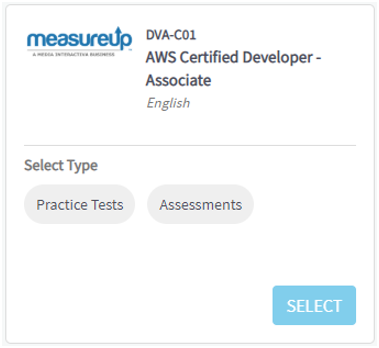
- Once you have found the product, select the Type to use (Practice Tests or Assessments), and click on SELECT.
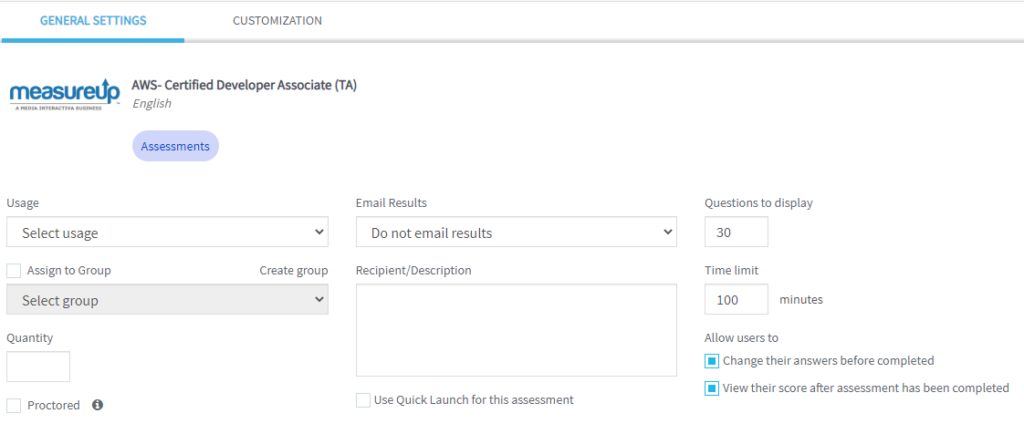
- On the GENERAL SETTINGS page, configure the product.
-
- Select the usage of the product.
- Select how would you like to receive the results.
- To assign that product to a group:
- Check Assign to Group.
- Select group.
- If needed, write a recipient and a description.
- Write the amount of product to use.
Notes.
-
-
- Usage and Quantity are mandatory.
- If you are ordering an Assessment, you can customize other fields (Questions to display, Time limit, Objectives to launch, etc.). Check the Proctored option, if you want to create a proctored assessment (IMPORTANT: This feature has an additional cost).
- Email Results. You can choose if you want the student receive his/her score report.
- Questions to display. You can choose how many questions will show the assessment.
- Time limit. You can choose how long will the exam last.
-
Note. CUSTOMIZATION TAB. You can select the objectives you want to launch.
-
- Click on Add to cart to add the purchase to the cart and continue with your order or click on Order to complete the order.
- On the order page, the following actions are available:
-
- Fill in the fields of the Order information.
- Check the Product information:
- To change the requested quantity, type a new quantity in the Quantity
- Should you want to change the usage, click on the Pencil icon to modify it.
- To delete some products, click on the Trash icon.
- Click on CHECKOUT.
The order has been processed. Now you can send the keys to the users by following the steps in this article
What would you like to do next?
- Do you want to create a new user? Click here for more info.
- Do you want to import users? Click here for more info.
- Do you want to send the ordered keys? Click here for more info.
- Do you want to create a group? Click here for more info.
- Do you want to create a user/group report? Click here for more info.