• Solutions
    • My Account
    • Learning Locker
    • Authoring Tool
    • Assessment Builder
    • Partner Portal
  • User profiles
  • Changelog
  • Platform Status
  • Downloads
  • Get PEDAGOO Today
  • Solutions
    • My Account
    • Learning Locker
    • Authoring Tool
    • Assessment Builder
    • Partner Portal
  • User profiles
  • Changelog
  • Platform Status
  • Downloads
  • Get PEDAGOO Today
home/Knowledge Base/Learning Locker/How to update a score report

How to update a score report

When finishing a downloaded (offline) test, your Test Score Report will be displayed. This score report is a summary of your results for this attempt.

You can upload the results of your download (offline) test to your Learning Locker. This feature allows you to enjoy the full functionality of the History section of your online Learning Locker.

By uploading your results to your Learning Locker you can track your overall progress, view a graph of your evolution, and email or print the reports.

Once you have finished a test the Test Score Report will open.

To update the results, please follow these steps:

  1. Click on the EXIT button.
  2. Enter your Learning Locker.
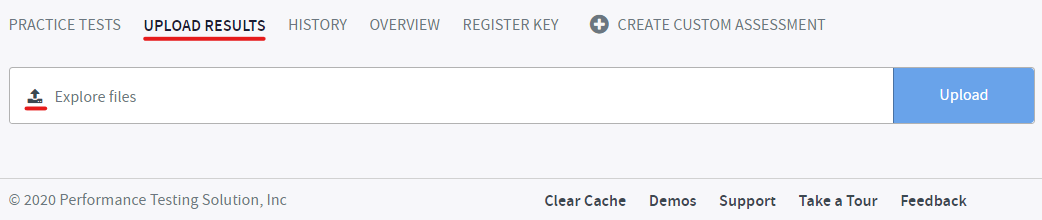
  3. Click on UPLOAD RESULTS.
  4. Click on Explore files.

  1. To upload the reports go to the results folder, and select the *.json file.

Note. All your score reports are saved to the folder where your test is located on your computer.

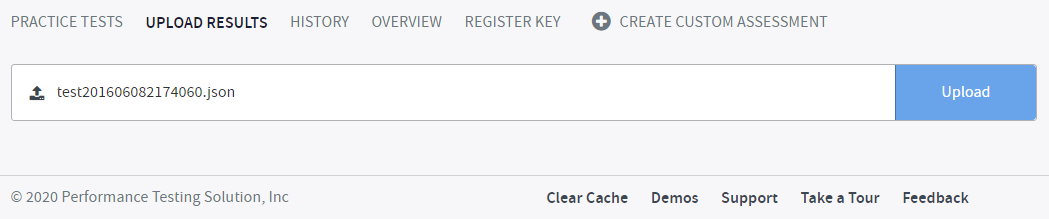
  1. Once the file has been selected, it will is displayed in your Learning Locker. then click on Upload.
  1. ​ The​ Upload Info window will then open to display the number not inserted. The information in this box can be explained as follows:
    • Results inserted. The number of reports successfully added to online history.
    • Results not inserted (Already inserted). The number of reports that have been added previously. The report file contains your entire history, so any score reports you have already loaded will not be duplicated.
    • Results not inserted (Test paused or corrupt). If your test has been paused then the result that is currently paused will not be loaded.
  1. Click on OK.

​Now you will be able to see your uploaded score reports in the​ HISTORY​ section of your​ Learning Locker. If you have more than one product you can use the search bar to find the one you’re looking for. You can open the​ Test Score Report by clicking on the Open Score Report button.


What would you like to do next?

  • Do you want to see a score report (download)? Click here for more info.
  • Do you want to launch a Practice test or an Assessment? Click here for more info.
Tags:Learning Lockerscore reportdownload test
Search
Categories
  • My Account
  • Learning Locker
  • Authoring Tool
  • Assessment Builder
  • Partner Portal
  • Proctoring
  • Pedagoo Website
  • Privacy Policy
  • Legal notice
  • Cookies Policy
  • Copyright 2020 Pedagoo. All Rights Reserved.

We use our and third party cookies to improve your experience and our services, and to analyse the use of our website. If you continue browsing, we take that to mean you accept their use. Read more.

ACCEPTCookie settings

Privacy & Cookies Policy

Privacy Overview

This website uses cookies to improve your experience while you navigate through the website. Out of these cookies, the cookies that are categorized as necessary are stored on your browser as they are essential for the working of basic functionalities of the website. We also use third-party cookies that help us analyze and understand how you use this website. These cookies will be stored in your browser only with your consent. You also have the option to opt-out of these cookies. But opting out of some of these cookies may have an effect on your browsing experience.
Necessary
Always Enabled
Necessary cookies are absolutely essential for the website to function properly. This category only includes cookies that ensures basic functionalities and security features of the website. These cookies do not store any personal information.
Non-necessary
Any cookies that may not be particularly necessary for the website to function and is used specifically to collect user personal data via analytics, ads, other embedded contents are termed as non-necessary cookies. It is mandatory to procure user consent prior to running these cookies on your website.
SAVE & ACCEPT
Popular Search:How to order keys, How to create a group, How to create an account and login